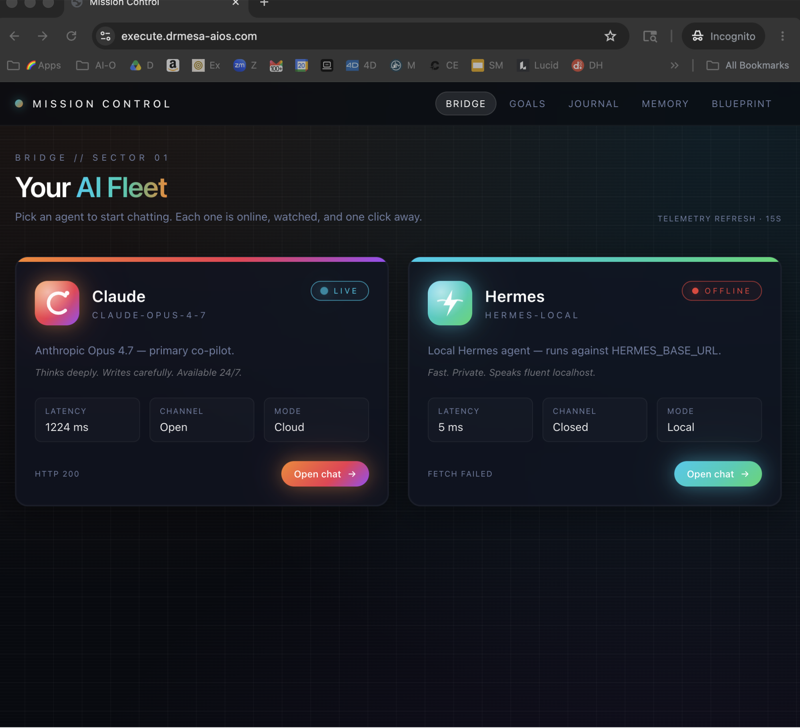
Hermes DeepSeek setup is one of those rare things that's actually easier than the docs suggest.
10 minutes.
Three commands.
Free agent stack live.
I'm going to walk you through every step — Ollama install, DeepSeek V4 Flash configuration, Hermes wiring, and the gotchas that waste an hour if you don't know them.
What You'll End Up With
By the end of this post:
- Hermes Agent installed and running
- DeepSeek V4 Flash configured as the model via Ollama cloud
- Open WebUI optionally wired for chat interface
- Telegram gateway optionally connected
- A working stack you can actually use today
Total cost: £0.
🔥 Want my full Hermes DeepSeek setup walkthrough + troubleshooting guide? Inside the AI Profit Boardroom I've recorded every step on video, documented every error I've hit, and put up the troubleshooting tree for what to do when things break. 3,000+ members already have this setup running. Plus weekly coaching to debug yours live. Click below. → Get the full setup walkthrough
Step 1 — Install Ollama
Ollama is the bridge to DeepSeek V4 Flash.
Open your terminal.
Run:
curl -fsSL https://ollama.com/install.sh | sh
Takes about 30 seconds.
After install, verify:
ollama --version
Should print a version number.
If it errors, restart your terminal and try again.
Step 2 — Pull DeepSeek V4 Flash
Don't pull the local DeepSeek model unless you have serious GPU.
Use Ollama cloud — runs DeepSeek V4 Flash on Ollama's servers, free tier.
In your terminal:
ollama pull deepseek-v4-flash
This pulls metadata, not the full model weights (because the model runs cloud-side).
Verify:
ollama list
DeepSeek V4 Flash should appear.
You can test it directly:
ollama run deepseek-v4-flash
You'll get a chat prompt. Type "are you working" — DeepSeek should reply.
I covered the Ollama side specifically in my DeepSeek V4 Ollama post — pairs naturally with this Hermes setup.
Step 3 — Install Hermes
Open a new terminal tab (Cmd+T on Mac).
Run the Hermes one-liner from the GitHub:
curl -fsSL https://raw.githubusercontent.com/nous-research/hermes-agent/main/scripts/install.sh | bash
Takes 1-2 minutes — installs Python 3.11, Node.js, dependencies, and the Hermes command.
After install, reload your shell:
source ~/.zshrc
(Or ~/.bashrc if you're on bash.)
Verify:
hermes --version
Should print a Hermes version number.
Step 4 — Configure Hermes To Use DeepSeek V4 Flash
Run:
hermes setup
You'll get a wizard.
When it asks for model provider, pick Ollama (local or cloud).
For model name, type:
deepseek-v4-flash
Hermes will test the connection and confirm.
Done.
Hermes is now using DeepSeek V4 Flash for all responses.
For the broader Hermes config options, my hermes ai course post walks through every setup wizard step.
Step 5 — First Hermes DeepSeek Test
In your terminal:
hermes
You'll get a chat prompt.
Type:
You're now running on DeepSeek V4 Flash. Confirm you're working and tell me one capability you have.
You should see Hermes respond using DeepSeek V4 Flash as the model.
If you do — setup is complete.
Step 6 — (Optional) Open WebUI
If you want a ChatGPT-style interface instead of terminal, install Open WebUI:
hermes
> "Install Open WebUI in Docker, configure the API gateway to use this Hermes instance, set up the env file, and report the local URL when done. Here's the GitHub: https://github.com/open-webui/open-webui"
Hermes does the rest.
5-10 minutes later you've got a chat interface in your browser.
I covered Open WebUI in detail in my hermes open web ui post — pairs perfectly with this Hermes DeepSeek setup.
Step 7 — (Optional) Telegram Gateway
For mobile access:
hermes gateway setup
Pick Telegram. Follow the wizard — it'll walk you through creating a Telegram bot via BotFather and connecting it.
5 minutes.
Now you can message your Hermes from Telegram, anywhere.
🔥 Want my Hermes DeepSeek + Telegram + Open WebUI all-in-one setup script? Inside the AI Profit Boardroom I've put up the bash script that installs all of this in one go — Hermes, Ollama, DeepSeek, Open WebUI, Telegram. Plus the config files. 3,000+ members already running this. Click below. → Get the all-in-one setup script
Common Setup Issues
Ollama can't pull DeepSeek V4 Flash — region restrictions sometimes hit. Try via VPN or use OpenRouter as alternative.
Hermes installs but hermes command not found — your PATH didn't update. source ~/.zshrc or restart terminal.
Hermes setup wizard freezes — usually network. Cancel (Ctrl+C), reconnect, retry.
DeepSeek responses are slow — first call is always slowest as Ollama warms up. Subsequent calls are fast.
"Connection refused" errors — Ollama daemon not running. ollama serve to start it manually.
For a deeper troubleshooting tree, my hermes ai course post covers every error I've hit across 6 months of daily use.
What To Do Next
You've got the stack.
Don't sit there.
Build these in your first week:
Day 1: Just chat with Hermes — let it learn your style.
Day 2: Install Wonderly Skills library — hermes skills install Wonderly Skills.
Day 3: Build your first custom skill — pick one repetitive task you do daily.
Day 4: Set up your first scheduled task — e.g. daily news brief.
Day 5: Connect Telegram or Open WebUI for mobile access.
Day 6: Spawn your first sub-agent for a parallel research task.
Day 7: Backup your skills folder to git.
Week 1 done — you've gone from zero to a personal AI system.
Production Considerations
For daily use on your laptop, the install above is fine.
For always-on production:
- Run on a £5-10/month VPS instead of laptop
- Set Hermes as a system service (
hermes service install) - Set up fallback model chains (Hermes v0.6+) for redundancy
- Configure auto-backup of memory + skills folders
I broke down the production patterns in my hermes ai course post — pairs naturally with this setup walkthrough.
Hermes DeepSeek Setup FAQ
Do I need a Mac specifically?
No — works on Mac, Linux, WSL2 on Windows. Native Windows is not supported.
How much disk space does this take?
Tiny — under 500MB for Hermes + Ollama. Models live cloud-side.
Can I run multiple models simultaneously?
Yes — pull multiple models via Ollama, switch with hermes model.
Is the free tier really enough for daily use?
For one user with normal volume — yes. For agency-level use, you'll want to top up.
What's the right model size?
DeepSeek V4 Flash is the right balance for daily use. Quen 3.6 Plus (also free) wins for long-context work.
Can I share my Hermes with my team?
Yes — multi-user accounts via Open WebUI, or run separate Hermes profiles per user (v0.6+).
Related Reading
- DeepSeek V4 Ollama — model details
- Hermes open web ui — UI install
- Hermes ai course — full deep dive
Final Take
Hermes DeepSeek setup is 10 minutes of work for a free AI agent stack that competes with paid products.
Three commands.
Three optional add-ons.
Daily-driver agent live.
Stop reading and install.
🔥 Ready to ship your Hermes DeepSeek setup tonight? Get a FREE AI Course + Community + 1,000 AI Agents 👉 join here. Or grab the all-in-one setup script inside the AI Profit Boardroom.
Learn how I make these videos 👉 aiprofitboardroom.com
Video notes + links to the tools 👉 skool.com/ai-profit-lab-7462
Hermes deepseek setup is 10 minutes — go and ship it.