OpenClaw Aion UI takes 10 minutes to set up, and this is the step-by-step. By the end of this post, you'll have Aion UI installed, connected to OpenClaw, and ready to manage all your AI agents from one dashboard.
Prerequisites
Three things to check before you start.
The first is OpenClaw running. Aion UI is a UI on top of OpenClaw, so OpenClaw needs to be running. If you don't have it, follow Build Your Own OpenClaw first.
The second is your OS. Aion UI has builds for Mac, Windows, and Linux.
The third is 10-15 minutes of focused time for a clean install plus first agent test.
Step 1 — Download OpenClaw AionUI
Go to the Aion UI download page and pick the build for your OS. Mac users want the .dmg, Windows users want the .exe, and Linux users want the .AppImage. Download.
Step 2 — Install
The install differs slightly by platform. Mac users drag to Applications. Windows users run the installer and click through. Linux users chmod the AppImage and double-click. It's the standard install for any desktop app.
Step 3 — Open OpenClaw AionUI
Launch Aion UI. The first open will show the dashboard, and you'll see the OpenClaw connection prompt as the first thing you need to address.
Step 4 — Make Sure OpenClaw Gateway Is Up
Open your terminal — or Claude Code if you don't want to touch the terminal — and make sure the OpenClaw gateway is running.
Aion UI auto-detects when OpenClaw is up. If it isn't, you'll see "connection error" or "gateway not live" inside Aion UI.
🔥 Want my exact Aion UI + OpenClaw config? Inside the AI Profit Boardroom, I share my full Aion UI walkthrough, agent presets, and 6-hour OpenClaw course. Plus weekly live coaching where I'll set this up live with you on a screen-share. 3,000+ members. → Get the config
Step 5 — Switch To OpenClaw Gateway In AionUI
Inside Aion UI, look for the OpenClaw Gateway view — it's where you talk to your OpenClaw agents. You'll see a clean chat panel that's much nicer than the OpenClaw browser gateway.
Step 6 — Add Models
Go to Aion UI's Models section and click "Add provider". Add the providers you want — Anthropic, DeepSeek, OpenRouter, Mistral, local Ollama, whatever fits your stack.
Aion UI auto-discovers available models, and you can switch between them per agent without restarting anything.
Step 7 — Configure Custom Agents
In the settings, you can view existing agents (like the OpenClaw setup expert), create new custom agents, set system prompts per agent, and pick the model each agent should use.
You can also delete templated sessions you don't actually use.
Step 8 — Test With A First Chat
Pick an agent, start a new chat, and send a test message. If you get a reply, Aion UI is connected and working.
Now you can manage everything from this one dashboard.
Step 9 — Set Up Remote Access (Phone)
In Aion UI settings, find the remote section and configure phone access. Now you can control your agents from your phone.
This is one of Aion UI's biggest features over the OpenClaw gateway, and it's worth setting up immediately even if you don't think you'll use it.
Step 10 — Add Skills
Aion UI has its own skills marketplace where you can browse, upload custom skills, and import existing OpenClaw skills. Skills work across all the agents you've connected, which means one skill can serve every agent in your stack.
Common Setup Issues
There are four issues that come up regularly during setup.
The first is "connection error" on first launch. Make sure OpenClaw is running first — Aion UI needs OpenClaw to be alive.
The second is "no models available". Add at least one provider in the Models section.
The third is an agent showing "blocked" in swarm-style mode. Click the agent and check its settings — usually the wrong API is selected, and switching to a model the agent can use fixes it.
The fourth is phone access not working. Check that your phone and Aion UI are on the same network. For external access, configure a VPN or remote tunnel.
What To Do After Setup
Once Aion UI runs, here's what to do in your first session.
Test phone access by sending a message from your phone. Schedule a daily task to confirm the schedule works. Add 1-2 useful skills, with web search being the most useful first one. Connect another agent like Hermes or Claude Code if you've got them installed.
I cover broader workflows in the multi-agent angle on the same release at Aion UI multi-agent.
Daily Reality After Setup
Once Aion UI is running, the daily flow looks clean.
You open Aion UI, pick an agent from the sidebar, chat or schedule the task, switch agents instantly when needed, and check progress from your phone if you're out. The OpenClaw browser gateway feels primitive after using Aion UI for even a week.
Multi-Agent Workflows
Once basic setup works, you can layer on multi-agent workflows.
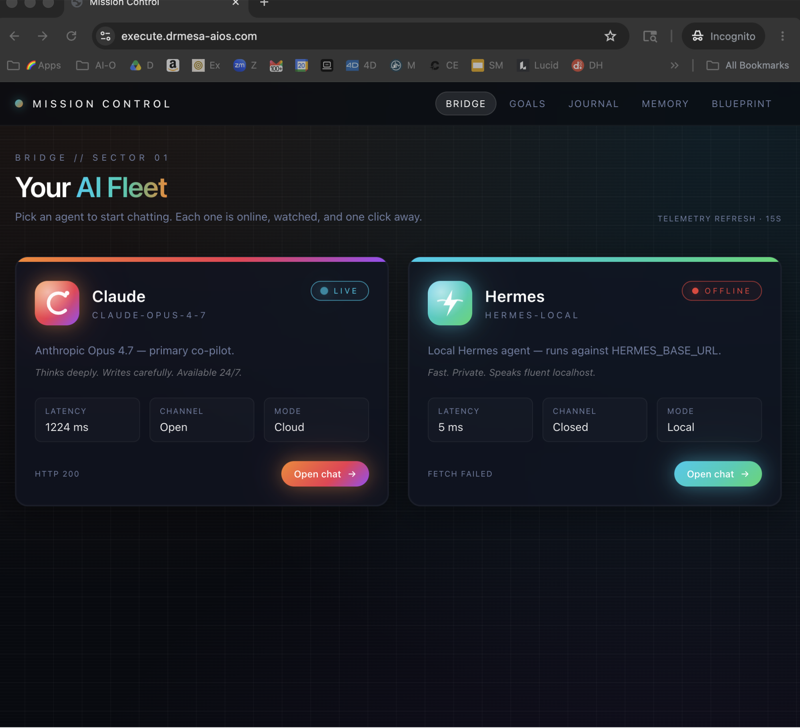
Add Hermes alongside OpenClaw. Add Claude Code if you have it installed. Run them in parallel for different tasks. Aion UI lets all of them work in one dashboard, which is the architecture you actually want for serious multi-agent work.
This pairs naturally with Hermes Agent Swarm for multi-agent setups.
Why Aion UI Beats Custom Front-Ends
Three reasons it's worth picking over a custom front-end.
The first is that it's free and open source — no subscription, no lock-in.
The second is multi-CLI support. Most front-ends only work with one agent; Aion UI works with 10+.
The third is active development. Regular updates and a growing skill marketplace mean the tool keeps getting better rather than stagnating.
When To Pick Aion UI Vs ClawX
Quick decision matrix.
If you're running OpenClaw only, ClawX is more focused. If you're running multiple agents, Aion UI wins. Both are free.
I run Aion UI because I use multiple agents and I want them in one dashboard.
🚀 Want my full Aion UI + OpenClaw playbook? The AI Profit Boardroom has the full setup walkthrough, my agent presets, OpenClaw 6-hour course, daily training drops, and weekly live coaching. 3,000+ members. → Join here
FAQ — OpenClaw Aion UI Setup
How long does Aion UI install take?
10-15 minutes for a clean install plus first agent.
Do I need OpenClaw installed first?
Yes. Aion UI is a wrapper.
Can I run Aion UI on a low-spec laptop?
Yes. Aion UI itself is light — the agents you run are what use resources.
Is Aion UI better than the OpenClaw browser gateway?
For most use cases, yes — clean UI, multi-agent support, phone access.
Can I use voice input?
Yes. Supported by Aion UI.
Will my OpenClaw skills work in Aion UI?
Yes. Skills are picked up automatically.
Does Aion UI work on iPad/iPhone?
Phone access is via web URL — your phone uses Aion UI through a browser.
Related Reading
- OpenClaw Aion UI Multi-Agent — same release, multi-agent angle.
- ClawX OpenClaw — alternative OpenClaw-only front-end.
- OpenClaw Desktop App — front-end overview.
📺 Video notes + links to the tools 👉
🎥 Learn how I make these videos 👉
🆓 Get a FREE AI Course + Community + 1,000 AI Agents 👉
That's the OpenClaw Aion UI setup — 10 steps and you've got the cleanest free dashboard for managing AI agents.