OpenClaw memory persistence setup takes about an hour — install OMI, configure Obsidian, link via MCP, and your AI agent finally remembers you. By the end of this post, you'll have OMI installed, Obsidian connected for knowledge sync, OpenClaw plugged into the memory system, and persistent memory actually working.
OpenClaw Memory Persistence Prerequisites
Three things to check before you start.
The first is OpenClaw running. If you don't have it, see Build Your Own OpenClaw.
The second is a Mac for OMI. OMI is Mac-primary right now, with other platforms in development.
The third is about 60 minutes of total setup time.
OpenClaw Memory Persistence Step 1 — Install OMI
Download OMI from omi.me (or the relevant distribution). It's open source — you can self-host. The Mac app is available now.
Install it like a normal app.
Step 2 — First-Time OMI Configuration
On first open, configure permissions for microphone and screen recording, choose what to capture, and set privacy preferences.
Be deliberate about what to capture. For most users, the right defaults are microphone yes (captures conversations) and screen optional (more privacy concerns).
Step 3 — Test OMI Capture
Have a 2-minute conversation with someone or speak out loud. OMI should capture and transcribe.
Check the conversations tab to verify the capture worked.
Step 4 — Install Obsidian
Obsidian is free. Download from obsidian.md and install like a normal app.
Step 5 — Create An Obsidian Vault
In Obsidian, create a new vault for OMI exports. Name it "OMI Memory" or similar and choose a local folder for storage.
🔥 Want my full OMI + OpenClaw memory setup? Inside the AI Profit Boardroom, I share my OMI + Obsidian + OpenClaw setup, MCP configs, and 30-day road map. Plus 6-hour OpenClaw course and weekly live coaching where you can share your screen for help. 3,000+ members. → Get the playbook
Step 6 — Connect OMI To Obsidian
In OMI's Apps section, find the Obsidian integration, enable it, and point it at your Obsidian vault location.
OMI will export captured memories to Obsidian as markdown automatically.
Step 7 — Verify The Sync
Check your Obsidian vault. You should see new markdown files, memory contents from OMI, and the knowledge graph populating.
If syncing isn't working, check OMI logs, confirm the Obsidian vault path is correct, and restart both apps.
Step 8 — Connect OMI To OpenClaw
OMI has an MCP (Model Context Protocol) server. In the OpenClaw config, add the OMI MCP server endpoint, authenticate if needed, and save.
Step 9 — Test The Persistence
In OpenClaw chat, ask "What have I been working on this week?" OpenClaw should query OMI's memory and return a contextual answer based on your captures.
If the response is generic, the connection isn't working. Re-check the MCP config.
Step 10 — Set Up Skills (Optional)
Once persistence works, add skills that take advantage of it.
Memory-aware skills use OMI context directly. Workflow skills reference your knowledge base. These compound the persistence value rather than just sitting on top of it.
Common Setup Issues
Four issues come up regularly during setup.
The first is OMI permissions denied. Mac requires explicit permissions for mic and screen — go to System Settings, Privacy & Security, and enable for OMI.
The second is Obsidian sync not happening. Check the vault path in OMI config and make sure Obsidian is closed when OMI writes.
The third is the MCP connection failing. Check that the OMI MCP server is running, verify the endpoint URL, and check the OpenClaw MCP config syntax.
The fourth is OpenClaw not using the memory. Confirm in chat by asking about something you discussed previously. If the response is still generic, check the MCP integration is active.
What To Do After Setup
Three steps to lock in the value of the memory layer.
The first is to use OMI for a week so the memory grows. The system gets more useful with more data.
The second is to test OpenClaw with personal queries. Ask about your projects. Ask about decisions you've made. Verify it knows.
The third is to build memory-aware workflows. Now that OpenClaw has context, build workflows that depend on it. For example, "Draft a follow-up email based on my conversation with [person] yesterday."
Privacy Configuration
Before going live, configure privacy carefully.
What to exclude includes password-typing screens, banking apps, confidential documents, and personal medical info.
What to include is work conversations, project discussions, idea brainstorms, and general knowledge work.
Be deliberate. You can adjust anytime, but the defaults matter.
Setup Time Reality
Honest numbers on the time investment.
OMI install takes 5-10 minutes. Configuration takes 10-15 minutes. Obsidian setup takes 5 minutes. Sync setup takes 10 minutes. OpenClaw MCP integration takes 15-20 minutes.
Total is 45-60 minutes. After that, daily use is automatic.
What Setup Doesn't Include
You set up the memory layer, but you don't pre-populate memory (it grows organically), get AI quality improvements automatically (that's model-dependent), or solve all context problems (some still need manual prompts).
For 80% of memory persistence needs, this setup covers it.
Hardware/Storage Considerations
OMI uses local disk for memory storage, CPU when capturing, and some RAM when active.
A modern Mac handles it fine. For low-spec machines, configure conservative capture settings.
Pairing With Other Tools
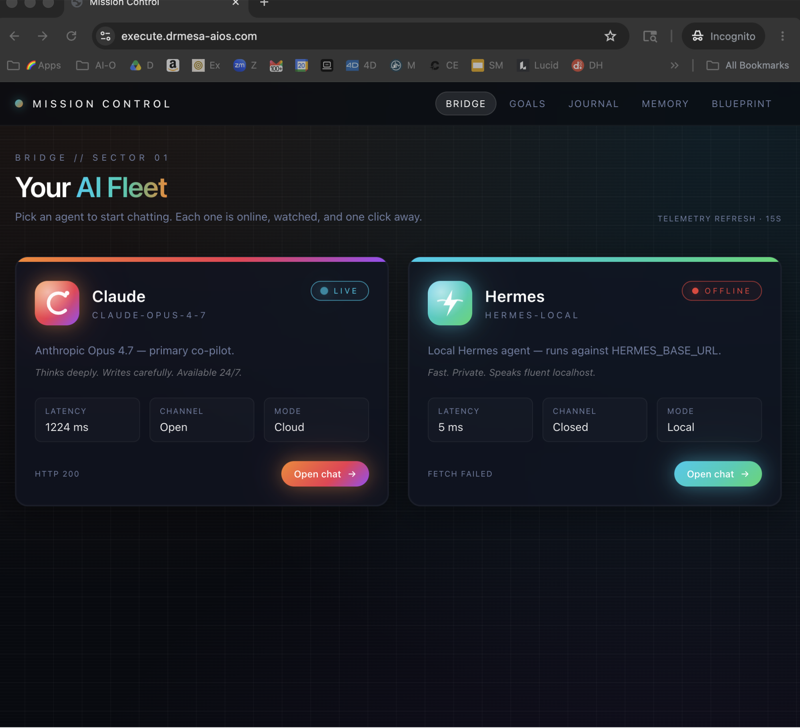
This stack works alongside OpenClaw computer use for desktop automation, OpenClaw Mission Control for agent management, and Auto Research Claw for deep research workflows.
Each layer adds capability.
Daily Reality After Setup
What it looks like once the system is dialled in.
OMI captures throughout the day automatically. Obsidian fills with structured memory. OpenClaw pulls context when you ask questions. Agent responses are personalised based on what you've actually discussed and decided.
You don't manage the memory system. It manages itself.
🚀 Want my full OMI + OpenClaw playbook? The AI Profit Boardroom has my OMI + Obsidian + OpenClaw setup, OpenClaw 6-hour course, daily training, weekly live coaching. 3,000+ members. → Join here
FAQ — OpenClaw Memory Persistence Setup
Is the setup really 60 minutes?
For first-time install, yes. After that, daily use is hands-off.
Do I need OMI specifically?
For this exact stack, yes. Alternatives exist but OMI is the most mature.
Will Obsidian work on Windows?
Yes. Obsidian is cross-platform. OMI is Mac-primary currently.
Can I delete my memory data?
Yes, anytime.
Will the memory affect OpenClaw performance?
Minimal — MCP queries are fast.
What if I don't have a Mac?
Wait for OMI Windows/Linux versions, or use alternative memory stacks (less mature).
Can I share memory across multiple AI agents?
Yes. The same MCP can serve OpenClaw, Hermes, Claude Code, and others.
Related Reading
- OpenClaw Memory Persistence Overview — what this solves.
- OpenClaw Computer Use — broader automation.
- Build Your Own OpenClaw — base install.
📺 Video notes + links to the tools 👉
🎥 Learn how I make these videos 👉
🆓 Get a FREE AI Course + Community + 1,000 AI Agents 👉
OpenClaw memory persistence setup is the missing piece most users haven't installed — 60 minutes today saves countless re-explanations forever.