OpenClaw Mission Control setup is genuinely 5 minutes — paste a GitHub link, OpenClaw does the rest. By the end of this post, you'll have OpenClaw Mission Control installed, the dashboard accessible, your first agent visible in the dashboard, and you'll be managing AI agents visually instead of through the CLI.
OpenClaw Mission Control Prerequisites
Two things to check before you start.
The first is OpenClaw running. If you don't have OpenClaw installed, follow Build Your Own OpenClaw first.
The second is internet for the install. Mission Control downloads from GitHub.
Step 1 — Get The GitHub Link
Find Builder Labs' Mission Control GitHub page and copy the entire repo URL.
Step 2 — Open OpenClaw Chat
Use your existing OpenClaw setup and open a chat session.
Step 3 — Ask OpenClaw To Install Mission Control
Type "Set this up: [paste GitHub link]" into the chat. OpenClaw reads the repo and installs Mission Control automatically.
Takes 2-5 minutes.
🔥 Want my Mission Control setup playbook? Inside the AI Profit Boardroom, I share my Mission Control setup, agent squad templates, and 30-day road map. Plus 6-hour OpenClaw course and weekly live coaching where you can share your screen for help. 3,000+ members. → Get the playbook
Step 4 — Get The Dashboard URL + API Key
Once installed, OpenClaw gives you the dashboard URL (usually localhost) and an API key for login. Save these somewhere you can find them later.
Step 5 — Open The Dashboard
Visit the URL in your browser, log in with the API key, and you're in.
Step 6 — Verify Agents Are Visible
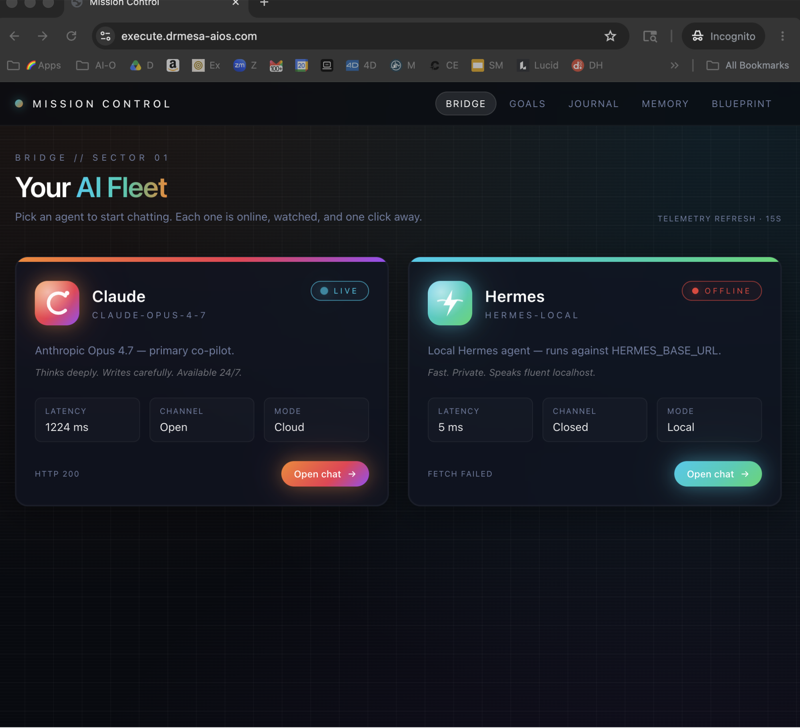
You should see your active OpenClaw sessions, system health metrics, and recent logs.
If agents aren't appearing, make sure the OpenClaw gateway is running and restart Mission Control.
Step 7 — Add A First Sub-Agent (Optional)
Try the Agent Squad feature.
Click "Add Agent" in the Squad section, name it (e.g. "Researcher"), pick a model (Haiku for fast, Sonnet for medium, Opus for complex), and set the system prompt.
You now have a multi-agent setup.
Step 8 — Test The Task Board
Try Kanban — add a task, move it through Backlog to To Do to In Progress, assign it to an agent, and watch it work.
Step 9 — Configure Settings
Mission Control has settings for memory browser access, scheduled jobs, and sub-agent spawn permissions. Configure to your preferences before you go live.
Step 10 — Optional Safety Layer
If you're cautious about installing GitHub-sourced tools, run files through Claude first, test in isolation, or use Mol Worker (Cloudflare-powered safer install).
For most users, Mission Control's repo is well-known enough to be trusted without these extra steps.
Common Setup Issues
There are four issues that come up regularly during setup.
The first is the install failing. Re-paste the GitHub link, and if it still fails, ask OpenClaw to debug.
The second is the dashboard URL not loading. Check OpenClaw is still running — Mission Control needs OpenClaw alive.
The third is the API key being rejected. Re-copy from OpenClaw output and watch for trailing whitespace.
The fourth is sessions not appearing. Check OpenClaw has active sessions — sometimes a Mission Control restart is needed to detect them.
What To Do First After Setup
Three things to prioritise in your first session.
The first is to explore the dashboard. Click through Sessions, Agent Squad, Task Board, Memory Browser, and Scheduled Jobs to get familiar with the layout.
The second is to add 2-3 sub-agents. Specialise — for example, an Orchestrator, a Developer, and a Content Creator.
The third is to set up one scheduled job. A recurring task that runs hands-off, like a daily news summary.
Setup Time Reality
Honest numbers on the time investment.
Install takes 2-5 minutes. First exploration takes 10 minutes. First sub-agent takes 5 minutes. First scheduled job takes 5 minutes. Total to be productive is 20-25 minutes.
What Setup Doesn't Include
Mission Control gives you the dashboard, but you still need to configure individual agent system prompts, build out workflows, and set up specific scheduled jobs.
Each is incremental rather than handled by the install.
How Mission Control Pairs With Other Tools
Mission Control is one piece of a broader stack.
Combine it with ClawX OpenClaw for the desktop front-end, OpenClaw computer use for desktop automation, and Auto Research Claw for the research extension.
Each fills a different need. Mission Control is the visibility plus management layer that ties them together.
Daily Reality After Setup
What it looks like once you're running Mission Control daily.
At 8am you open Mission Control, see overnight activity, check the task board, spawn sub-agents for today's work, and add scheduled jobs as needed. The workflow used to be terminal-only and now it's visual.
Why The 5-Minute Install Matters
Most AI tool installs take 30+ minutes of fiddling. Mission Control setup is genuinely 5 minutes because OpenClaw handles the install via chat, there are no manual config files, and there's no JSON editing.
Lower barrier equals faster adoption. That matters more than the technical novelty.
🚀 Want my full OpenClaw + Mission Control playbook? The AI Profit Boardroom has my Mission Control setup, OpenClaw 6-hour course, daily training, weekly live coaching. 3,000+ members. → Join here
FAQ — OpenClaw Mission Control Setup
Is the install really 5 minutes?
Yes. OpenClaw handles it via chat.
Do I need to know coding?
No. OpenClaw runs the install for you.
What if install fails?
Ask OpenClaw to debug or re-paste the GitHub link.
Can I install on multiple machines?
Yes. Install per machine.
Will Mission Control affect my OpenClaw performance?
Minimal overhead.
Is the dashboard mobile-friendly?
Limited — desktop is the primary experience.
Can I share the dashboard with my team?
Possible with proper network setup. For most solo users, single-user is fine.
Related Reading
- OpenClaw Mission Control — overview.
- ClawX OpenClaw — alternative front-end.
- Build Your Own OpenClaw — base install.
📺 Video notes + links to the tools 👉
🎥 Learn how I make these videos 👉
🆓 Get a FREE AI Course + Community + 1,000 AI Agents 👉
OpenClaw Mission Control setup is the easiest dashboard install I've done in 2026 — 5 minutes and you've got real-time visibility into your AI agent fleet.