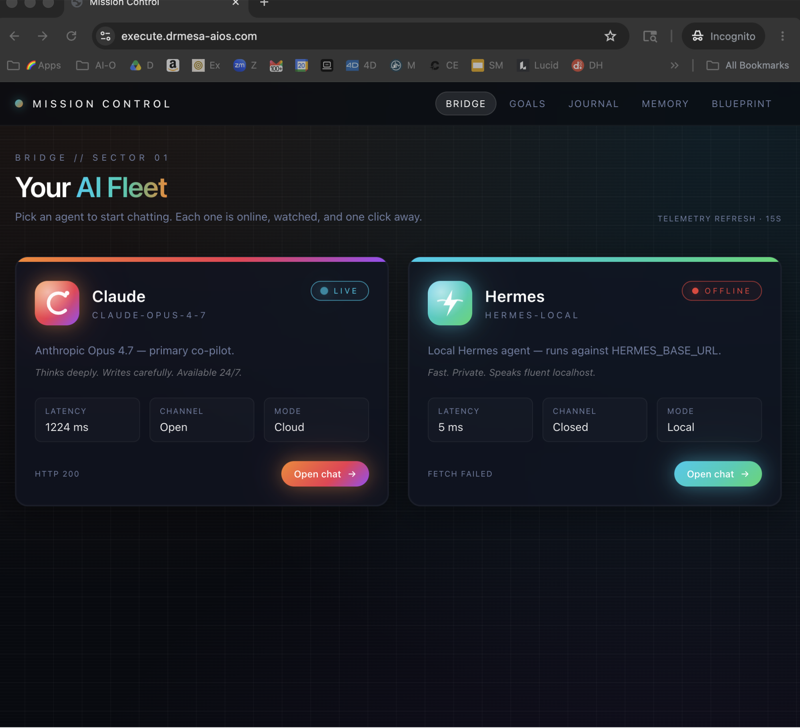
How to setup Hermes agent in literally one click — this is the simplest install path I've found for non-technical users in 2026. Most "how to setup Hermes agent" guides assume you're a developer, and this one doesn't. I'll show you the literal one-click install path: copy a single command, paste it, hit enter, and you're running Hermes.
What "One-Click" Actually Means
Be honest about what's happening. There's still a click and you're still going to use the terminal once.
But after that single command, you have a fully running Hermes AI agent — no GitHub, no config files, no JSON editing. For most people, this is as close to one-click as Hermes gets in 2026.
What You Get By The End
A working Hermes AI agent on your computer that chats with you, uses 70+ built-in skills, switches models on demand, and runs free local models or free cloud models depending on what you pick.
Total time is about 20 seconds for the install command plus however long the model download takes.
How To Setup Hermes Agent: Step 1 — Pick Your Path
There are three options for the one-click install, and each has a different trade-off.
Path A is the free cloud model, which is the fastest start. Token limits exist but you'll get going instantly without local install steps.
Path B is free local Ollama, which is the most sustainable. Free, no token limits, but needs Ollama installed first.
Path C is Max Hermes — paid, zero setup, hosted in the cloud through MiniMax. The fastest possible path if you don't want to install anything locally.
For Path A and B, the one-click install is literally a terminal command.
Step 2 — Install Ollama (For Path B Only)
Skip this step if you're going with Path A or C.
For Path B, go to ollama.com, download for your OS, and install like any normal app. Verify it's running by visiting http://localhost:11434 in your browser — it should say "Ollama is running".
Step 3 — Get The One-Click Command
Each model on Ollama has a command on its page. Examples include ollama run gemma4, ollama run deepseek, and ollama run qwen3.6.
Copy the command for your chosen model.
Step 4 — Paste In Terminal
Open Terminal on Mac or Command Prompt on Windows. Paste the command and hit Enter. Wait for the model to download — that takes 5-20 minutes depending on size.
That's the literal one-click install.
🔥 Want my full one-click Hermes setup playbook? Inside the AI Profit Boardroom, I share my exact Hermes config, 2-hour Hermes course, model recommendations, and weekly live coaching where I'll set this up with you on a screen-share. 3,000+ members ready to help. → Get the playbook
How To Setup Hermes Agent: Step 5 — Connect To Ollama
In the Hermes config, point it at Ollama with the following settings.
provider: ollama
url: http://localhost:11434
model: gemma4
Save and restart Hermes. If you're running Free Claude Code or Codex, they can do this configuration step for you — just paste the install command and ask "set this up for me".
How To Setup Hermes Agent: Step 6 — Send A Test Message
Open Hermes, send "hello — are you working?", and wait for the reply. If you get one, you're done.
You now have a free Hermes AI agent running on your machine.
What If The Terminal Step Scares You
It's a fair concern, and there's a clean bypass — use Claude Code or Codex.
Both are AI coding assistants that can run terminal commands for you. Install Claude Code or Codex (one-click installers exist), open it, paste the Hermes install command, and type "install this for me". The AI runs the install and you don't touch the terminal.
I cover this trick in detail in Free Claude Code.
Recommended Models For The One-Click Install
Don't overthink this — the differences between models matter less than getting started.
For Path A (cloud), Kimi K2.5 is strong on reasoning and GLM 5.1 Cloud is a solid all-rounder.
For Path B (local), Gemma 4 is around 7GB and runs on light laptops, making it a perfect first install. DeepSeek is better for agent tasks, and Qwen 3.6 is general-purpose.
For most beginners, start with Gemma 4.
What If The Install Fails
There are three common failure modes and a fix for each.
The first is "Ollama not running". Make sure Ollama is open in the background before you run ollama run.
The second is "out of memory". You picked a model bigger than your laptop can handle — try Gemma 4 instead.
The third is "Hermes can't see the model". Restart Hermes after Ollama is running. It picks up the model on launch.
Cloud Vs Local — Which One-Click Path
Quick decision matrix.
If you've got a decent laptop with 16GB+ of RAM, go local with Ollama. If you've got a light laptop or you're just testing, go cloud free tier. If you don't want any local install, go Max Hermes.
For long-term use, local Ollama is the smartest pick. For first-time testing, cloud is fastest.
Daily Reality After Install
What it looks like once you're up and running.
You open Hermes and chat with the AI. It uses web search, browser, memory, and other skills as needed. It's free forever if you're on local Ollama.
I run mine daily for content, research, automation, and admin work.
What Comes Next
Once Hermes is running, the next steps are clear.
Try a few skills — web search is the most useful first one. Try a few different models in Ollama to find your favourite. Connect Hermes to a channel like Telegram or WhatsApp. Build a custom skill once you've got the rhythm.
I cover the post-install path in Hermes Agent Workspace.
🚀 Want guided Hermes onboarding? The AI Profit Boardroom has a beginner-friendly Hermes track with daily training drops, a 2-hour Hermes course, and weekly screen-share coaching where I'll set this up live with you. 3,000+ members ready to help. → Join here
FAQ — Hermes Agent One-Click Install
Is it really one click?
One terminal command, yes. Or zero clicks if you let Claude Code do it for you.
How long does install take?
Under a minute for Path A (cloud). 15-30 minutes for Path B (local, including model download).
Will my old laptop run Hermes?
Yes if you pick small models like Gemma 4.
Do I need to know any code?
No.
Will the agent work offline?
Yes if you're using local Ollama models.
What if I don't want to use the terminal?
Use Claude Code or Codex to run the install for you.
Which model is best for first install?
Gemma 4 — small, fast, free.
Related Reading
- Free Claude Code — terminal-skip shortcut.
- Ollama Hermes — full Ollama walkthrough.
- Hermes Gemma 4 — beginner local model.
📺 Video notes + links to the tools 👉
🎥 Learn how I make these videos 👉
🆓 Get a FREE AI Course + Community + 1,000 AI Agents 👉
That's how to setup Hermes agent in one click — paste, run, done. The simplest install path for getting Hermes running today.